How to Build an FF&E Schedule Clients and Contractors Can Follow
By Gus Maldonado, Founder of Board Composer ·
The presentation is where the client chooses the design. The schedule is where the contractor builds it. When the schedule is clear and current, the right product arrives in the right size, finish and quantity.
On the projects I have worked on, the schedule was drawn in CAD, on the same sheets as the plans, and sent as a PDF. Each item had a code, a photo and its specifications next to the drawing it belonged to. The format worked well. When something went wrong, it was almost never the format. It was an outdated file.
What every item needs
Group the items by category, such as millwork, appliances, electrical, plumbing, cabinetry and stone. Inside each group, every item gets the same block of information:
- —A code. A short category prefix plus a number: MW-1 for the first millwork item, A-1 for the first appliance, EL-1 for the first electrical item. Put the same code as a tag on the drawing, so the contractor can go from the plan to the specification and back.
- —Where it goes and what it is. "Laundry – washer", "Primary suite – door style". The room first, then the item.
- —A photo. A small image next to the specification makes it easy to confirm the item at a glance.
- —Vendor and model. The exact model number, not just the product name.
- —Description, dimensions and finish. Write the finish and color the way the vendor names them.
- —Details specific to the category. Appliances need their electrical requirements, such as voltage and plug type. Stone needs its thickness, edge and slab size. These are the details the contractor needs before ordering or preparing the space.
- —Who supplies it. "Supplied by the tile installer", "Owner to purchase". When this is written down, every item has one clear owner.
- —Notes. "Refer to architect’s drawings" or "standard white unless otherwise noted" tells the contractor where to look.
Keep the same fields for every item in a category, even when one of them is empty. An empty field stands out and gets filled. A field that isn’t there at all goes unnoticed.
Keep it current
The most common problem I saw was not a bad schedule. It was a good schedule that was out of date. The contractor had printed an earlier version, or saved it on their phone, and kept working from it after the design changed.
- 1Put the revision number on every page and in the file name: "R5 · FF&E schedule". Numbers work better than dates, because a schedule can change twice in one day. More on this in How to keep a record of every design revision.
- 2Keep an item’s code when the item changes. If the washer model changes, A-1 is still A-1 with its new specification. If an item is removed, retire its code instead of giving it to something else.
- 3List what changed at the top. "R5: A-1 new model, EL-4 removed." The contractor sees the changes at once, without comparing two PDFs line by line.
- 4Send it to everyone who works from it, at the same time, and say which revision it replaces.
Does the client need to see it?
It depends on the client. Some like to check every model number. Many only want to see the finished result and trust you with the technical side. A good default is to send the presentation to the client and the schedule to the contractor, and to share the schedule with the client when they ask for it.
How Board Composer handles it
In Board Composer, the Technical Schedule is built from the same products you presented to your client. There is nothing to retype.
Built from your project. Each product already carries its photo and details: item code, vendor, supplier, model number, SKU, finish, dimensions, quantity, price, responsibility and notes. The schedule uses them as they are.
Grouped by space, with the floor plan. If the project has a floor plan, the schedule opens with it and its numbered spaces, followed by every product grouped by space. With "Include floor plan" checked, your product photos also appear on the plan on screen (they are left out of the printed PDF).
You choose the columns. The photo and product name are always included. You pick the rest, so prices can stay out of the contractor’s copy.
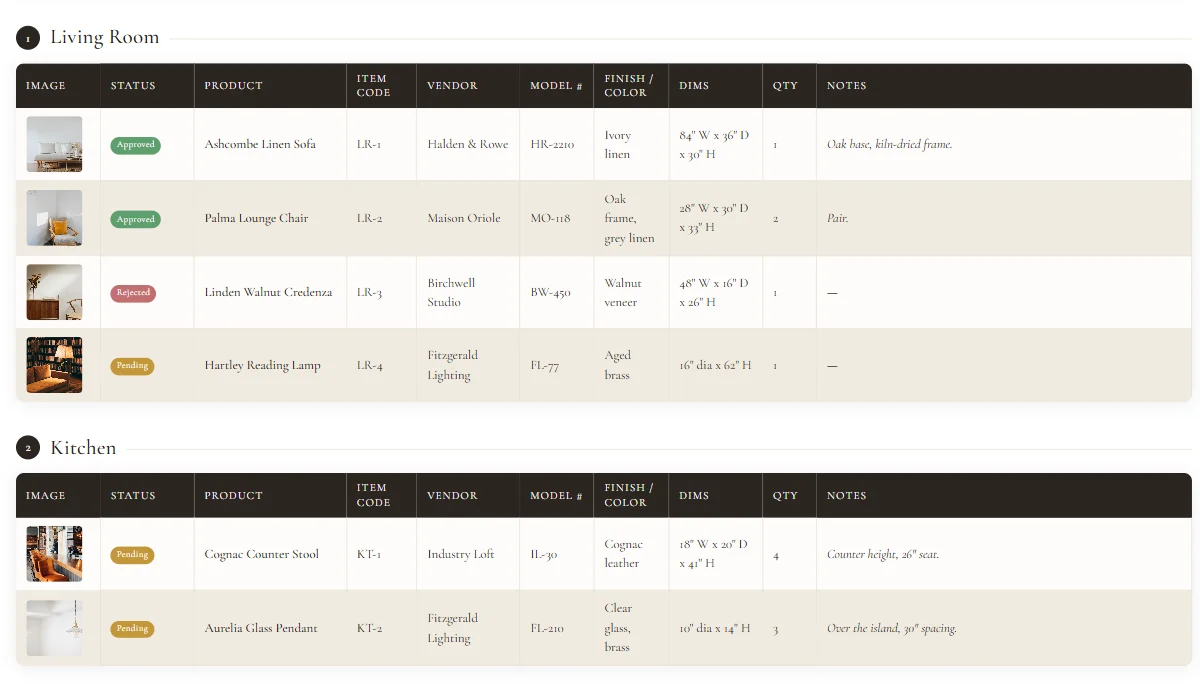
Who buys and installs. The Responsibility field offers options such as "Builder to purchase & install" or "Owner to purchase, builder to install", or you can write your own.
The client’s answers, included. A Status column can show which products the client approved, rejected or left pending.
A link instead of an attachment. The contractor opens the schedule in any browser, with no account, and can print it or save it as a PDF. It can be read in English, Spanish or Portuguese.
Every schedule is a numbered revision. Its name appears at the top of the page, and it is saved in your Revision History. When a new schedule goes out, you can remove the link to the old one so nobody keeps working from it. The old revision stays on record.
Technical Schedule links are part of the Pro plan.
Frequently asked questions
What does FF&E stand for?
Furniture, fixtures and equipment. In practice, a schedule often also covers finishes, millwork and electrical items.
Should the schedule be grouped by room or by category?
Both work. Grouping by category suits trades that order by category. Grouping by room suits walking the site. Board Composer groups the schedule by space.
Can I leave prices out of the contractor’s copy?
Yes. You choose which columns appear each time you open a schedule.
Does the contractor need an account?
No. They open the link in any browser.
Build your next schedule from the products you already presented.
Start free↗