How to Get Client Approvals on Interior Design Selections
By Gus Maldonado, Founder of Board Composer ·
Getting a client to approve a sofa is easy. Knowing, three weeks later, which sofa they approved is the hard part.
Most interior designers I have worked with run approvals the same way. They build the presentation in PowerPoint, export it to PDF, and send it by email. WhatsApp keeps the conversation moving, and the email thread becomes the official record. That works for the first round. It starts to break on the second.
Why approvals get lost
The client replies to an old email. After a few rounds there are a dozen messages with almost the same subject line. The client opens the one at the top of their inbox, which is not always the latest, and answers it. Now you have an approval attached to a version that is no longer current, and nobody notices until something is ordered.
The client changes their mind, then changes it back. They pick product A. Two weeks later they switch to product B. A month later they ask to go back to A. Each decision lives in a different email, and the only way to know what is current is to reread the whole thread in order.
Someone is missing from the thread. One person left off a single reply is enough. Your team works from one version, the client works from another, and the contractor may be working from a third.
Dates do not help. On a busy project you can send three or four emails on the same day. "The one from Tuesday" is not specific enough.
None of this is the client’s fault, and it is not carelessness on your side. Email was never meant to be a record of decisions.
A simple method that works with any tool
You can fix most of this without new software. The habit that matters most is numbering.
- 1Number every revision. Call the first presentation R1, the next R2, and so on. Never reuse a number, even for a small fix.
- 2Put the number everywhere. In the file name, on the cover of the PDF, and at the start of the email subject: "R3 · Living room selections". When a client replies to R2, you will see it immediately.
- 3Ask for a decision per product, not per presentation. "Looks great" is not an approval. For each item, ask for one of three answers: approved, rejected, or still deciding. Write the answer next to the product, not in a paragraph.
- 4Keep one current version. When R4 goes out, R3 is history. Say so in the email: "This replaces R3."
- 5Close a round when it is decided. Once the client confirms a selection, mark that revision as final and do not edit it again. If something changes later, it goes into a new revision with a new number.
The goal is simple: anyone on the project should be able to answer "what did the client approve, and when?" in under a minute, without reading the whole thread.
How Board Composer handles it
I built Board Composer because this method works. Board Composer makes revisions with your client easier: it numbers every round and keeps the record for you, so you can focus on the design and on the conversation with your client.
One link instead of an email thread. You share your presentation as a link. The client opens it in the browser, with no account and nothing to install, and always sees the version you sent.
A decision on every product. Next to each product the client chooses Approved, Rejected or Pending, and can leave a comment. No paragraph to interpret. When they are done, they press Submit Review and their answers are sent to you. The link reminds them of this when they open it: answers are saved only once they submit.
Answers come back to your project. Each product shows a colored border in your grid, on your board, on the floor plan and in the presentation: green for approved, amber for pending or commented, red for rejected. You see the state of the whole project at a glance.
Every share is a numbered revision. Each time you share, Board Composer saves a new revision. Revision History lists every round, and each round keeps the answers the client submitted for that round. If the client goes from A to B and back to A, you can open each round and see exactly what was approved when.
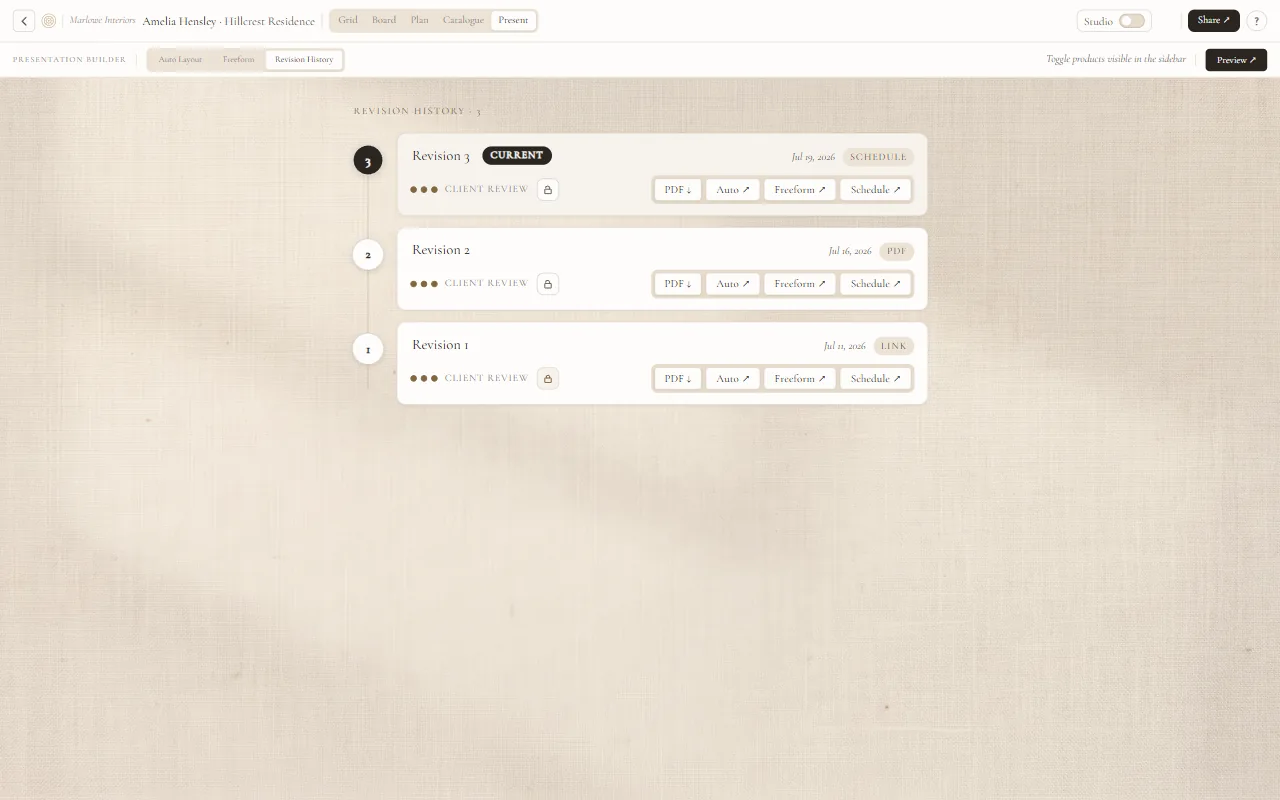
Lock a round when it is final. Locking a revision keeps it on record exactly as it was. The client can still open it, but can no longer change their answers.
Show only what the client should see. You choose which details appear in the shared presentation, so prices, vendors and internal notes can stay private.
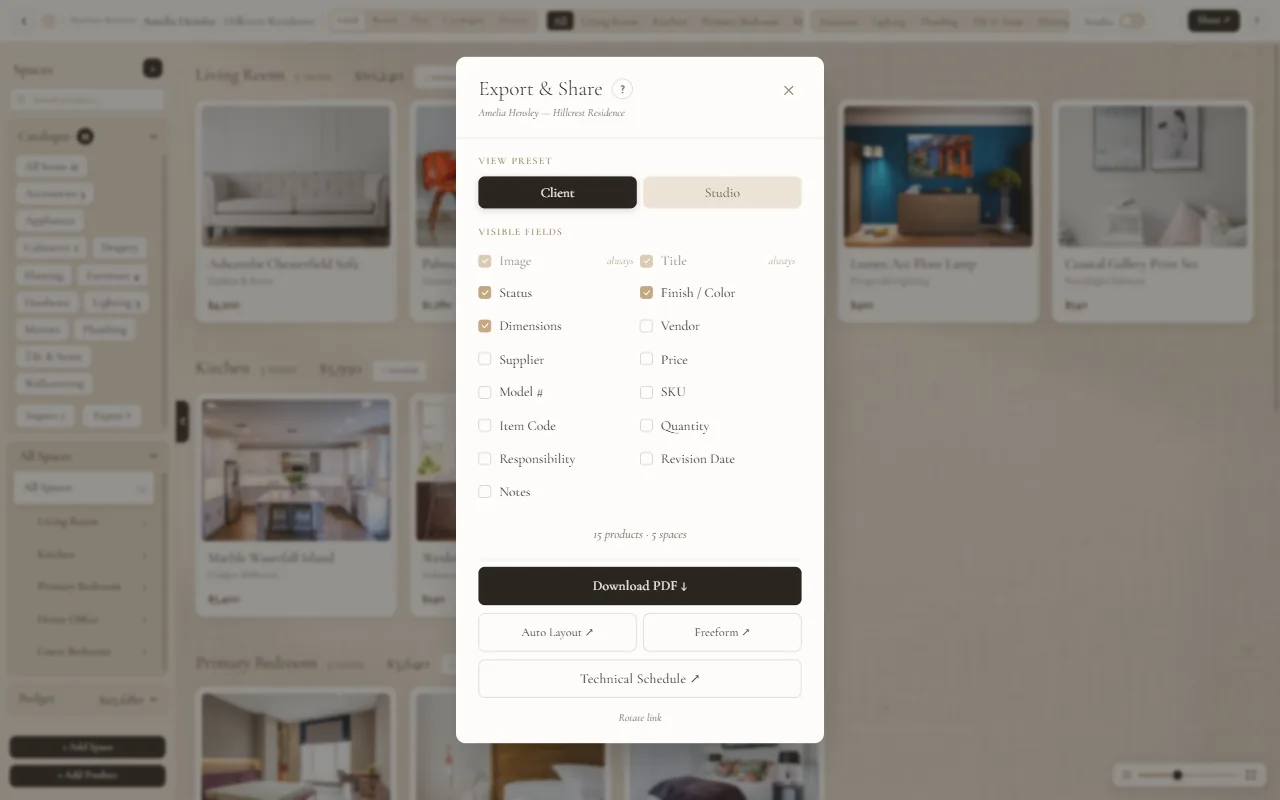
Sharing links and Revision History are part of the Pro plan. On the Free plan you can still export a polished PDF.
Frequently asked questions
Does my client need an account to approve products?
No. They open the link in any browser and answer product by product.
What happens if the client changes their mind after approving?
Share again. The new round is saved as a new revision, and the earlier rounds keep their original answers, so you always know what was approved before.
Can I still send a PDF?
Yes. You can export the presentation as a PDF on any plan.
Can the client change answers after I lock a revision?
No. A locked revision stays exactly as it was. They can still view it.
Try it on your next presentation.
Start free↗