How to Keep a Record of Every Design Revision
By Gus Maldonado, Founder of Board Composer ·
Every design changes along the way. The client asks for a different rug, the contractor finds a beam where a cabinet was supposed to go, a product is discontinued. Changes are part of the work. The trouble starts when people are looking at different versions and nobody notices.
How revisions get mixed up
On the projects I have worked on, revisions were saved in folders named by date. It looked organized, and for the first few rounds it was.
One folder per day, several changes per day. On a busy day the design can change two or three times. The folder had the date as its name, so only one of those versions had a clear place. The others ended up overwritten or with names like "final-2".
The client reviews the morning version. You send an update in the morning and another one in the afternoon. The client opens the first email, works through it, and sends back changes to a version that has already been replaced. Nobody did anything wrong: both emails had the same date and almost the same subject.
You send the wrong file. With two versions from the same day in the same folder, it is easy to attach the earlier one. It happens to careful people.
The contractor keeps an old copy. Contractors download the file, print it and take it to the site. When the design changes, the new file reaches their inbox, but the copy on site is still the old one. Of everyone on a project, the contractor is the one most often working from an outdated file.
A simple method that works with any tool
You can fix most of this without new software. The key is to name revisions by number instead of by date.
- 1Number every revision. R1, R2, R3. Two revisions on the same day are still R4 and R5. Write the date inside the document, not instead of the number.
- 2Never reuse a number. Even a small fix gets the next number. If R4 goes out with a mistake, the corrected version is R5.
- 3Never edit a file after it has been sent. Once R4 leaves your hands, it is the record of what you sent. Any change, however small, becomes R5.
- 4Keep a one-line log. Number, date, what changed and who received it: "R5 · Oct 3 · Kitchen: new faucet, longer island · Client, contractor." When someone asks what changed between two versions, the answer is one line away.
- 5Send each revision to everyone at once, contractor included. Say in the first line what it replaces: "This is R5. It replaces R4."
- 6Keep current and old apart. One folder for the current revision, another for everything it replaced. Ask the contractor to do the same on site.
The goal is that anyone on the project can tell which version is current, and that you can show exactly what was sent, and to whom.
How Board Composer handles it
I built Board Composer around this method. It numbers every revision and keeps the record for you, so you can focus on the design.
Every share is a numbered revision. Each time you download a PDF, share a link with your client or open a Technical Schedule, Board Composer saves a new revision with its own number. Three updates on the same day are three revisions. You can give each one a name, such as "Kitchen after site visit".
The latest one is marked Current. Revision History lists every revision with its number, date and type (PDF, Link or Schedule). The newest one carries a Current label, so there is no doubt about which one is in force.
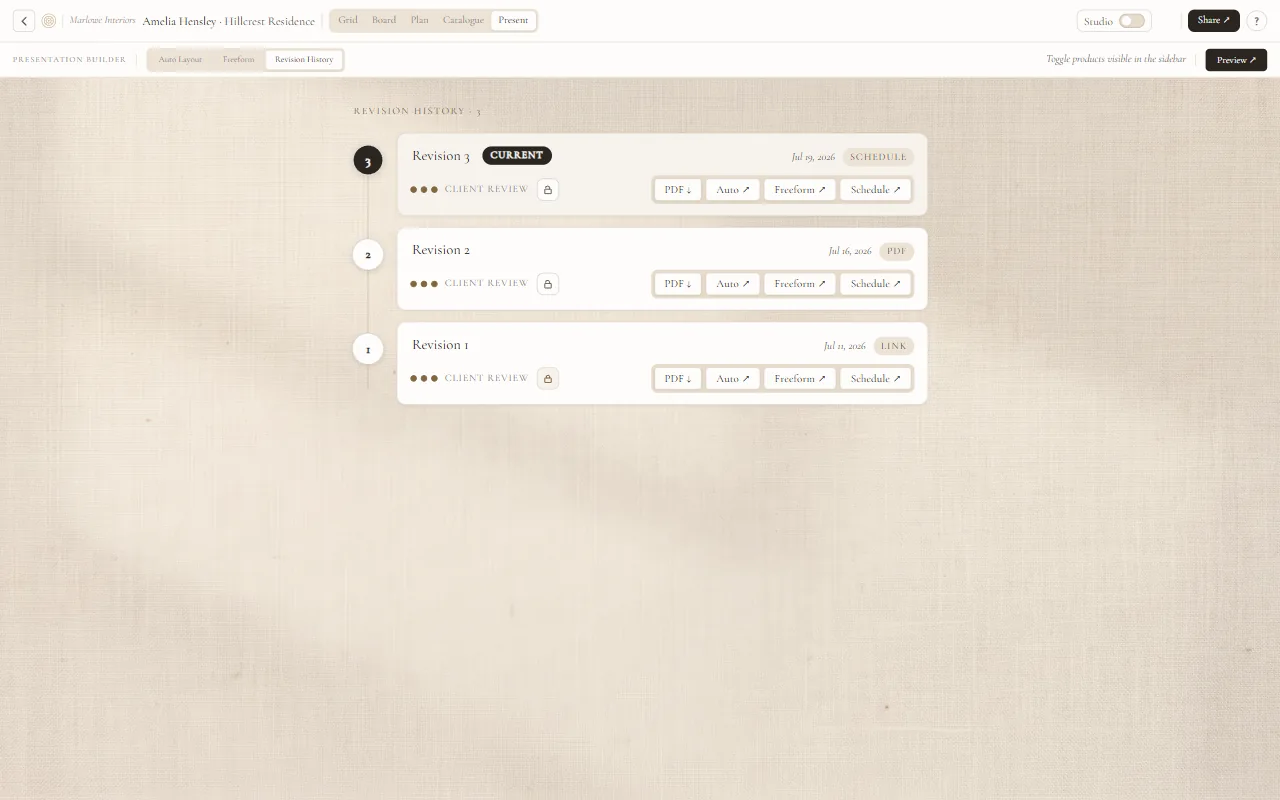
Each revision stays exactly as it was sent. Its products, spaces and date are kept as they were. You can open any revision again as a PDF, as the presentation your client saw, or as the Technical Schedule, and see exactly what was sent.
Old links don’t take new answers. When you share a new revision, the earlier ones are locked automatically. If your client opens an old link, they see that the revision has been locked by the designer, and they can’t submit answers on it. Their answers go to the current version.
Each round keeps its own answers. The answers your client submitted for a round stay with that round. If they approved one sofa in R2 and another in R4, both decisions are on record.
Remove the link to an old version. If a contractor or anyone else still has the link to an outdated revision, you can remove that link. Nobody can open it anymore, and the revision stays in your history as a record. If you ever need to share it again, a new link is created.
Revision History and sharing links are part of the Pro plan. On the Free plan you can still export a polished PDF.
Frequently asked questions
Is it a problem to send two revisions on the same day?
No, as long as each one has its own number. Numbers stay clear in cases where dates don’t.
What does my client see if they open an old link?
The revision as it was sent, with a note that it has been locked by the designer. They can view it but can’t submit answers on it.
Can I delete a revision?
Yes, but that also removes the record of what you showed and when. If you only want to stop someone from opening it, remove its link instead. The revision stays in your history.
Can I share an earlier revision again?
Yes. Open it from Revision History as a PDF, a presentation or a schedule. If its link was removed, a new one is created.
Keep your next project on record from the first round.
Start free↗